-
User Guide for InExchange Print Service
-
Choose How to Send Your Invoices
-
Invoice Review
-
Attachments
-
Read More
1. Start by launching your invoicing software.
2. Print the current invoices to InExchange Invoice Printer.
3. Select Yes, transfer now in the dialog box that appears on your screen.

4. Log in through the login box that pops up on your screen.
If you want to print more invoices, select No, later (the prints will then be queued until you print and select Yes, transfer now next time) and if it is an invoice or a document that should not be transferred to the invoice printer, select No, remove.
You still have the option to remove transferred invoices in the invoice printer if needed. This can be done in the last step of the invoice printer Invoice Check. Select the invoice and click on Remove.
Paper Copies
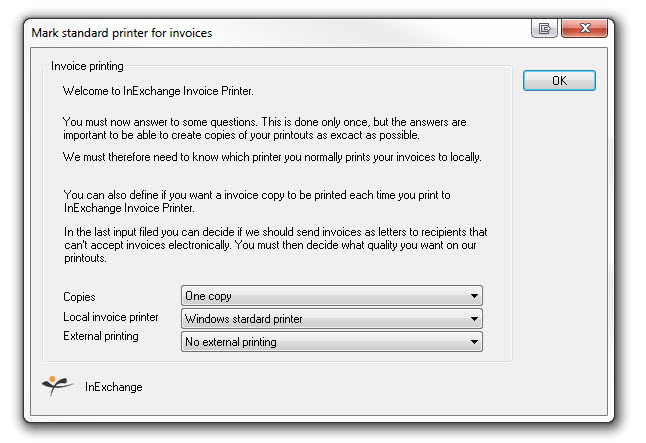
If you want to receive paper copies automatically when printing invoices to the invoice printer, you can set this up via the shortcut Printer Settings.
You can find it here: Start > All Programs > InExchange > Settings > Printer Settings
There, you can choose how many copies you want and which printer to use.