-
User Guide for InExchange Print Service
-
Choose How to Send Your Invoices
-
Invoice Review
-
Attachments
-
Read More
Getting started guides for InExchange Invoice Printer:
In our guides, you will find information about the invoice printer and how to get started with the service. Below we have gathered answers to additional questions that may arise during the process.
About InExchange Invoice Printer
1. Can I only send e-invoices via InExchange?
Through the invoice printer, you can send all your invoices. All your electronic invoices, but also any PDF- and paper invoices to those who do not yet receive e-invoices. You can attach attachments to your invoices.
Read more:
Watch our film about e-invoices:
2. How do I install the invoice printer?
See our installation guide for instructions.
3. About operating systems and invoice formats
InExchange Invoice Printer can be used on all Windows operating systems from Windows XP and onwards. If you have a computer with Mac OS, the invoice printer works if you have the ability to run the business system in a Windows environment.
In order for us to convert your invoice to an e-invoice and read all information correctly, the invoice needs to be transferred to us as a regular Windows print file directly from the business system to the invoice printer.
4. How do I see which version I have of the invoice printer?
To check which version of InExchange Invoice Printer is installed, start the program and click on About.
Here's what it might look like:
5. We are changing business systems and getting new invoice templates. What do we need to consider?
Some business systems have integrated solutions so you can send your invoices directly from the business system and have them delivered in the way you have chosen for each individual invoice recipient, such as e-invoice, PDF or paper invoice. Contact the supplier for the business system you are using to see if such an option exists.
If you continue to use InExchange Invoice Printer and will receive new invoice templates, new reading templates need to be created for your invoices with us. Inform our support that a change will occur and then transfer invoices via the invoice printer with the new template when it becomes possible. Invoices that have received a new template will automatically be stopped because they do not match your existing templates. Support will be created for the new templates, allowing you to continue invoicing as usual. A one-time cost will be incurred.
Read more:What counts as an invoice template?
Send examples of different types of invoice data (to ensure support can be created correctly from the start)
How to create a support case via our contact forms >>
6. I have forgotten my password. How do I reset it?
There is information about password recovery in User Guide for InExchange Invoice Printer.
7. Updating your company's contact information
When you join the InExchange network, you become searchable by others in the network. They can contact you to start receiving e-invoices from you or to send e-invoices to you. To ensure inquiries and other information reach you, it is important that your contact information is kept up to date. This is filled in on Account > Profile page on InExchange Network. You can have different contacts and information for different types of files and information.
Use the icons on the right on each row to add, change, or remove information.
Read more: How do I change our contact information
8. How do we update the information in the footers of our invoices?
We read the information from your original invoices that you transfer to us via the invoice printer. Changes need to be made in your business system or invoicing program.
If the placement of the information does not change on the invoice template, it is usually fine to change it without notifying us, but if you have completely changed the layout or business system, it is always good to contact our support to ensure that the invoices do not get stuck during reading.
If you do not print any footer along with your invoices, you need to notify us of the new information so that we can update it in our system.
9. What are "Notifications" in the invoice printer?
In InExchange Invoice Printer, there is an icon that takes you to Notifications in InExchange Network. Here you can see and address, for example, undelivered invoices, inquiries from other companies in the network, and more.
10. How does it work when my invoices are converted to e-invoices?
When you use InExchange Invoice Printer we need to receive a Windows print file from your business system to be able to handle the file. You create the invoice as usual in your business system and then print it to the invoice printer. InExchange receives the file and manages the translation to different e-invoice formats.
We see how your invoice layout looks and the placement of your invoice information in the files you send to us via the invoice printer and can thus create reading templates that convert your invoices to e-invoices.
11. How do I choose which company I want to log in to?
When you have logged into InExchange Invoice Printer you will be given the option to choose which company you want to log in to.
You do this by selecting from the dropdown list which company you want to log in to and then clicking OK
12. Want to use invoice printer for more than one company?
In the new invoice printer, the logged-in user is saved for 12 hours after the first login of the day.
If you have multiple companies but use different user accounts for each company or multiple colleagues using the same computer, the printer will be locked to one of the companies and user accounts.
To be able to print from multiple companies or accounts, you need to do one of the following options:
- You can request access to all companies from one of your user accounts, instead of using a unique account for each company. This allows you to be prompted regarding which company the invoices should be printed for. Ordering changes for the user account is done through "Send a request."
- You can remove the ability for the invoice printer to remember the last login; to do this, you need to contact Inexchange support.
Frequently asked questions about agreements and user licenses >>
Invoice management and delivery of invoices
1. Can I send an invoice that includes value-added tax?
According to the standards we use in Sweden regarding electronic invoices (Svefaktura or PEPPOL BIS Billing V3), there is no support for invoices that are specified to include VAT. This includes all invoices where value-added tax has already been included in the invoice lines.
You can read more about the Svefaktura standard by clicking here.
You can read more about PEPPOL BIS Billing 3.0 by clicking here.
2. Why do I receive an error message when I try to transfer an invoice?
You will receive information in the message about what the error is due to. It may be a calculation error on the invoice that causes it to be stopped. Please check that line amounts, VAT, any rounding, etc., match the summaries on the invoice. If you need to adjust something, you can choose not to transfer the invoice. Correct the invoice in your business system and then transfer it again.
When you started using the invoice printer, reading templates were created with us based on the information on your invoices. If changes have been made to the invoice template, you need to contact us so that we adjust the reading template or if you have chosen the wrong template, you can print the invoice again with the correct template.
Read more: What counts as an invoice template?
Common invoice types and data
3. I need to invoice a new customer. Do I need to do anything special?
It may be that your new customer has activated reference control on their invoices or that they want to approve you as a supplier before you start sending e-invoices to them. Search for the customer in our network and see what features the customer has activated. In many cases, nothing special is required, and you can start sending e-invoices directly.
If your customer is not yet registered as a recipient with us, you can add them via our contact form >>
Read more: Check if the customer has any e-invoice requirements
4. What should I do if my customer receives e-invoices via another operator?
If the customer is already registered as a recipient in the network (you can check this on the page Expand your network), you can invoice the customer via the invoice printer. If the customer requires a specific reference number, you need to contact the customer to get the correct details.
If your customer uses another operator to receive e-invoices and the invoice recipient is not yet registered in our network, you can create a support case where you provide details about the company name, organization number, GLN and operator to have them registered. You can then send e-invoices to them.
Read more: Check if the customer has any e-invoice requirements
How to create a support case to add a new recipient >>
5. I have sent an invoice, when will it be delivered?
Paper Invoice
Paper invoices are delivered based on the selected postage and depending on when you transfer the invoice to us.
A-mail: within 1-2 business days
B-mail: within 3-5 business days
E-invoice (including PDF invoice)
Electronic invoices are delivered continuously and can often be delivered to the end customer within seconds, but generally on the same day or no later than the next business day.
First e-invoice to a customer
When you send an e-invoice to a customer to whom you have not previously sent e-invoices, a message is automatically sent to the customer that they need to approve you as a supplier in the network. The response time from the customer may vary, and therefore the first e-invoice delivery may take between 1-3 business days. Once a customer has approved receiving e-invoices from you, delivery occurs according to the above delivery times.
If the customer rejects your request, you will receive a message about this. Please contact the customer for more information.
If you do not want to send invoices to certain customers via InExchange, you have the option to block the customer in the invoice printer. This way, you will not accidentally send the invoices through us.
Block a customer number for invoice delivery in the invoice printer
1. Transfer an invoice to the invoice printer for the specific customer number you want to block.
2. In the step Select delivery method, you can block the customer by right-clicking on the invoice and then selecting Block customer.
The customer is marked with a red icon
In the left column, indicating that invoices to this customer will not be sent, hover over the icon to get more information
You can then easily remove the invoices in the step Invoice Control by selecting the invoice or invoices and clicking the Remove button.
To remove the block on the customer, do the same and uncheck Block customer in the menu.
7. Update the invoice recipient's network connection in the invoice printer
If you need to reconnect an e-invoice recipient in the network (for example, during a reorganization at the recipient's), you can do so in the step Select how your invoices should be sent in the invoice printer.
To change the connection to the network, you can choose to search by company name, GLN or organization number. Then select the correct recipient from the hit list to connect your customer to the correct recipient in the network. A green marking in the left column indicates that an active e-invoice recipient has been connected to your customer in your customer register with InExchange.
If you cannot find the current recipient, feel free to contact InExchange support >>
8. What do the color markings mean in the invoice printer?
When you send invoices via the invoice printer, you receive recommendations and help to choose the best possible delivery method for each invoice recipient directly in the service. For example, if you are about to send a paper invoice to a customer who can receive e-invoices, an orange triangle will appear in the left column.
Hover over the icons in the invoice printer to get information and recommendations.
Explanations for the color markings:
Green marking
Your selected settings are working, and you have chosen the best possible delivery method for the current recipient. You can proceed to the next step in invoicing with the existing settings.
Orange marking
You can send the invoice with these settings and proceed to the next step in the invoicing process, but the system suggests a better option when choosing the delivery method.
Red marking
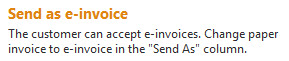
You cannot send the invoice without correcting your settings for the current recipient. This marking appears, among other things, if you have chosen to send the invoice as an e-invoice to a recipient who does not accept e-invoices. Choose to send the invoice as a PDF invoice (email address specified in the box below the invoice list) or as a paper invoice instead. You can also choose to wait to send the invoice or to remove it. Use the buttons or right-click on the invoice to perform these actions.
Red (block)
The customer number has been blocked, and no invoices can be sent to the customer via the invoice printer until you choose to deactivate this. Right-click on an invoice issued to the current customer number in the step Select how your invoices should be sent and click on Block customer to remove the marking. Do the same to block a customer if needed.
Blue marking
When you send invoices through the invoice printer, you may sometimes see an information box that says Connected via interoperability. This means that the recipient uses a different e-invoice operator than InExchange, but with whom we have a partnership. In these cases, we cannot verify if any reference codes are correct directly in our application. If an invoice has an incorrect reference code, you will receive an email about this after the shipment is completed.
9. How do I choose the delivery method in the invoice printer?
The delivery method is selected in the invoice printer's step Select how your invoices should be sent. Choose between e-invoice, PDF, and paper. Your settings are saved per recipient. If there is a cheaper option available for the customer, you will be notified of this by an orange triangle in the left column. Hover over the icon to read more.
E-invoice - To send an e-invoice, your customer must be connectable to an e-invoice recipient in the network. If there is no information in the columns for Org.no, Company and GLN, you can search for the customer in any of these fields. If the customer cannot be found, you can choose to send a PDF or paper until the customer becomes available.
10. How can I easily optimize the delivery method for my invoices?
Import customer list
If you want help figuring out which of your customers receive e-invoices, you are welcome to upload your customer list via this form.
Postage optimization
When you send your invoices via the invoice printer, you will receive suggestions for cheaper delivery methods when possible. If you see an orange icon in the left column for a customer in the invoice printer, in the step Select how your invoices should be sent, hover over it to get more information, see image.
You can also use InExchange Postage Optimization to see which of your customers can switch to a cheaper delivery method.
Read more: Use InExchange Postage Optimization to choose the delivery method
11. How do I add attachments to invoices?
Attachments can be added to invoices in the step Invoice Control in the invoice printer. Select the invoice that you want to have an attachment, then click the Attachments button under the information box and follow the instructions.
In User Guide for InExchange Invoice Printer, you can read more about attachment management.
12. Can I remove an invoice in the invoice printer?
If you have accidentally printed a document to the invoice printer, you can select No, remove at printing.
Remove invoices in the invoice printer:
Select the current invoice in the step Invoice Control and click the Remove button at the bottom of the menu or right-click on the invoice in the list and select Remove invoice.
You can also use keyboard combinations as shown in the image below.
13. Can I send the same PDF invoice to multiple email addresses?
It is possible to send PDF invoices to multiple recipients by separating the email addresses with a comma (without spaces). However, there is a limit of a maximum of 100 characters total in this field.
This is how to specify the email addresses (example):
fictitious@address1.com,fictitious@address2.com
References and invoice prints
1. Can I correct an incorrect invoice reference in the invoice printer?
Invoice references are read from your invoices, but it is possible to correct an incorrect reference without needing to recreate or correct the invoice in your business system. In cases where you try to send an invoice with an incorrect reference to a customer who uses reference control, you will receive a message about this in the invoice printer and can then correct the reference directly. If the invoice recipient uses another operator, this correction is instead made on the To Manage page after you have sent the invoice, see instructions for this further down in the article. In these cases, you will receive a message that there is an undelivered invoice to handle.
Correct a reference in the invoice printer
Select the current invoice in the step Invoice Control in the invoice printer and enter the correct reference details under Action for invoice.
Correct reference details are obtained from the invoice recipient.
Correct a reference on an undelivered invoice on the To Manage page
You can correct an incorrect reference on the To Manage page in InExchange Network if the invoice could not be delivered. This primarily applies when the invoice recipient uses another operator. In these cases, the reference control occurs with the receiving operator after the invoice has been sent via the invoice printer. You will receive a message that an invoice could not be delivered and will be referred to the To Manage view to correct and resend the invoice.
Returned paper invoices can be resent from the same view.
Errors that require the invoice to be corrected or recreated in your business system
If there is incorrect information on the invoice lines or calculation errors, for example regarding VAT or totals, an error message will be displayed in the invoice printer. You will then need to correct or create a new invoice in your business system, which you then send via the invoice printer.
Read more:
Manage stopped invoices and returned paper invoices
2. Is it possible to correct incorrect information on an invoice?
On the To Manage page in InExchange Network, you can edit certain details on invoices that for various reasons could not be delivered. This may be due to an incorrect reference or order number, an incorrect address on a paper invoice, or similar. Click the Manage button and correct the incorrect details. Then resend the invoice.

However, if there is incorrect information on the invoice lines or calculation errors, for example regarding VAT or totals, an error message will be displayed in the invoice printer. You will then need to correct or create a new invoice in your business system, which you then send via the invoice printer.
3. What does the invoice look like when sent as a PDF or paper?
Here’s how to see what your invoice looks like when delivered on paper or as a PDF
1. Print to InExchange Invoice Printer as usual.
2. At the Send step (Invoice Control), click View.
3. Then click on Print Preview.
Now you can review how your original invoice or InExchange standard invoice looks when printed and enveloped, as well as your delivery settings. The highlighted fields illustrate from left to right:
- The area for the print partner's barcode. No information should be present here.
- Presentation of return address through envelope window.
- Presentation of invoice address through envelope window (darker area is always visible through the envelope window).
Read more:What does the InExchange standard template look like when printed or delivered as a PDF?
4. How do I see if a cover sheet is activated for my paper invoices?
If you have a cover sheet activated, this will be displayed in the print preview. Follow the instructions in the previous answer "What does the invoice look like when sent as a PDF or paper?" to find it.
The reason a cover sheet has been activated may be that your invoices lack a return address in the invoice header that can be displayed in the envelope window. The return address is then on the cover sheet so that the invoice can be returned if it cannot be delivered to the recipient for any reason.
On the print preview page, you can see if a cover sheet is activated or not.
If the menu option You use Cover Sheet is displayed, this has been activated for your invoices. Click the tab to see what the cover sheet looks like.
In this view, Print Preview, you can see which invoice template is used for the paper invoices you send via InExchange.
You can check how your paper invoices look at any time. Select the current invoice in the step Invoice Control in the invoice printer and click View to open it in your browser. Then press Print Preview to access the view below.
Please note that you do not see all of the above tabs on your screen, only those that are relevant to you.
Below is an explanation of the different tabs and options.
 You are using Printed Invoice
This is what your original invoice looks like. We use your invoice template when sending paper invoices. Click and drag to show different parts of the invoice. Please note that we only show the first page of a multi-page invoice in this view.
 You are using Invoice Template
In this view, your invoice is shown in the InExchange standard template. It is used when printing your invoices when the address details on your own invoice do not fit in window envelopes or if other company information is missing.
 You are using Cover Sheet
Cover sheets are used when you send paper invoices. The reason may be, for example, that there is no return address on your invoices. Here you can see what the printout looks like.
Compare print & template
If the InExchange invoice template is used, you can compare the printout of the original invoice against the template that is used.
Settings
Here you will find information about the print provider that the invoices are sent through as well as settings for how and when your paper invoices are sent.
Other:
Show area for Datamatrix
Show areas on the invoice where tracking information is placed. These fields must not contain any invoice information. They are overwritten at printing.
6. What format should the invoice being transferred be in?
What we need from you is a regular Windows print file from your business system. Format requirements and invoice content are then checked by InExchange before the file is delivered.
In order for us to handle the file, the invoice needs to be printed directly from the business system to the invoice printer. If the file is first saved to the computer before being sent to InExchange, the information does not follow in a way that allows us to convert your invoice to an electronic invoice.
Please note that PDF files sometimes cannot be used when reading invoice files because the text information in the file is often converted to display as graphics.
We support nearly 400 different business systems, so the chances of you being able to get started with electronic invoicing quickly and smoothly are very high. Please feel free to contact us, and we will tell you more!
See our film on how invoices are sent to InExchange via the invoice printer.
The information sent via InExchange Invoice Printer shows how the invoice looks when printed (image of the format tif) and what text it contains and its placement (structured text of the format gdixml). This is then used to create reading templates that convert your invoice prints to e-invoices.
7. Can I get a paper copy automatically?
If you want hard copies automatically when printing invoices to the Invoice Printer, you can set this via the shortcut Printer settings.
It can be found here: Start > All Programs > InExchange > Settings > Printer settings.
There, you select the number of copies you want and which printer to use.
HELP WITH TROUBLESHOOTING the invoice printer and file transfers >>
If you do not find the answer to your question, you are welcome to contact our support for assistance. The chat in the invoice printer is open on all business days between 8:00 AM - 5:00 PM (lunch closed 12-1). You can also reach us by phone and through our contact forms.