-
USER GUIDE
-
INVOICES
-
REGISTERS
-
SETTINGS
- Subscriptions
- General – Company info
- General – Contact info
- General – Reports
- General – User management
- Cancellation of the service
- Cancel the termination
- Accounts receivable – FTP settings
- Accounts receivable – Invoice settings
- Accounts receivable – Print settings
- Accounts payable – Reference management
-
SUPPLIER INVOICE BASIC
-
INEXCHANGE STORE
-
OTHER
How do I create a credit invoice?
You can create a credit invoice in two ways: either by copying a previous invoice (the easiest way) or by creating a completely new one manually.
Method 1: Via Sent Invoices (Recommended)
The easiest way to credit is to start from the invoice you want to correct. All details will then be filled in automatically.
- Go to Sent Invoices in the menu.
- Find the invoice you want to credit.
- Click on the three dots farthest to the right on the row.
- Select Create Credit Invoice.
- Adjust the information if needed and click send.
Method 2: Create Manually from Scratch
If you want to create a credit invoice without starting from a previous order, follow these steps:
Go to Create Invoice. Under the section Invoice Information, change the invoice type to Credit (also called credit note). Then fill in the other information (customer, items, etc.) as usual.
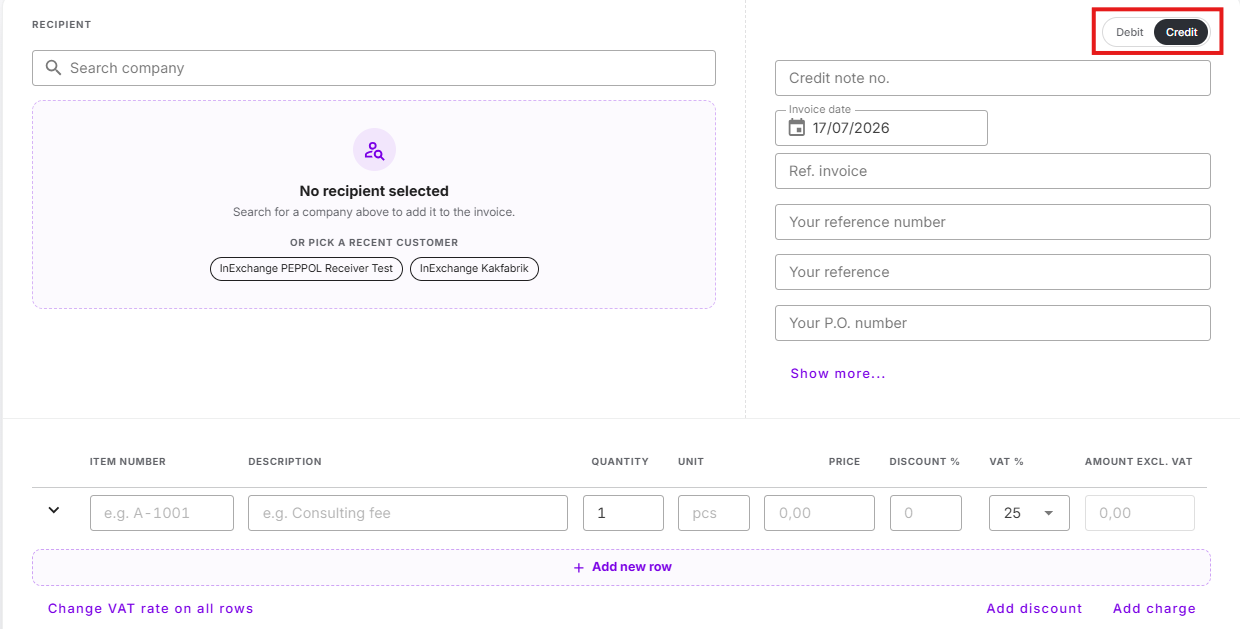 Important: Enter Amount Correctly
Regardless of which method you choose, a credit invoice must always have a positive total amount. The system identifies the invoice as a credit by the invoice type, not by a minus sign.
✅ Correct: Positive total amount
❌ Incorrect: Negative total amount
Frequently Asked Questions about Creating Credit Invoices
1. Why must the total amount on a credit invoice be positive?
Most e-invoices are sent in the Svefaktura format, which requires that the final amount on both invoices and credit invoices is always positive.
This means:
You cannot send an invoice with a negative total amount.
If you do, we usually need to help you adjust the invoice so that it is sent correctly in a positive format.Negative lines are allowed.
You can enter a negative quantity on a line, as long as the unit price is positive. The system will then handle the line correctly even if the value is negative.The total amount must always be positive.
This applies to both debit invoices and credit invoices.
If you need help or are unsure how to structure a credit invoice, you are always welcome to contact our support or chat with our AI bot.
2. Why does the option Create Credit Invoice not appear in the menu?
The function to create a credit invoice is only shown for invoices created in the new environment. Invoices created before the system migration lack technical support for copying, so the option cannot be shown in the menu.
3. How can I credit an invoice that lacks the option in the menu?
It is still possible to create a credit invoice, but the process must be done manually. Create a new invoice and select the invoice type Credit. Fill in customer details, items, and amounts just like a regular invoice.
Steps to create a credit invoice manually
- Go to Create Invoice in the menu.
- Select the invoice type Credit in the invoice information section.
- Add items and adjust quantities and amounts as needed.
- Check that the total amount is correct and send the invoice.